

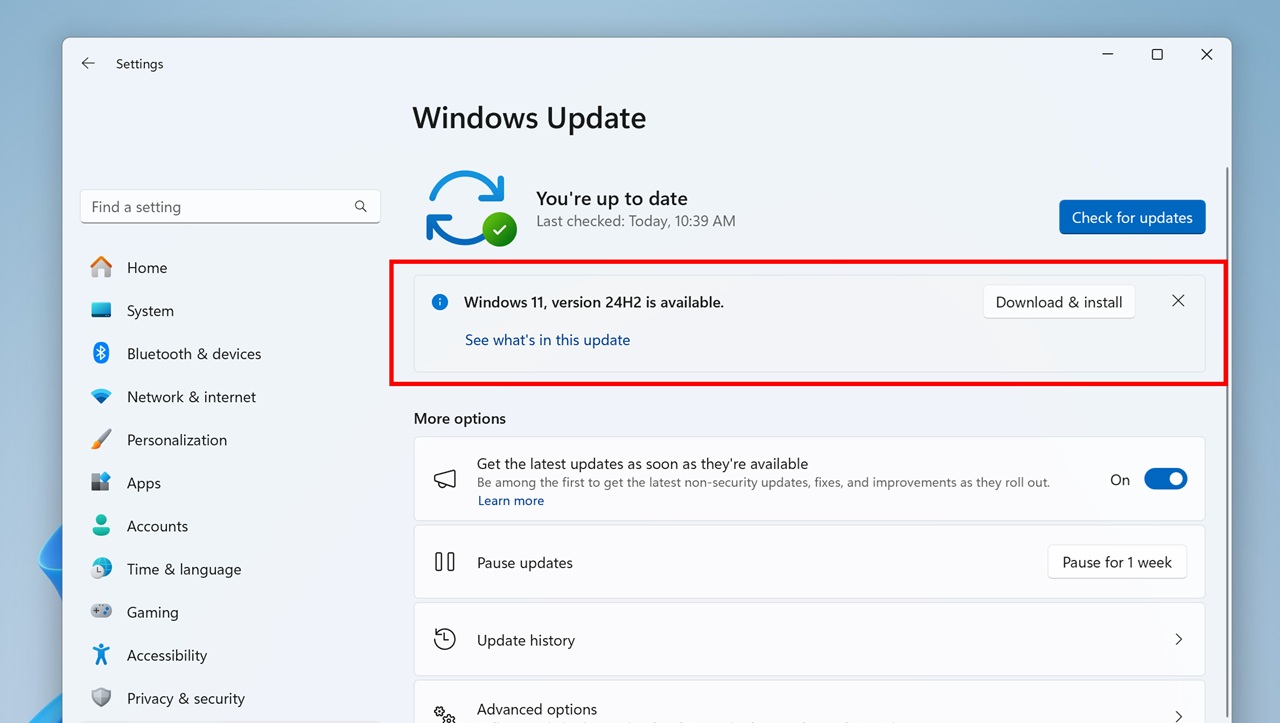
Windows 11 24H2 is one of Microsoft’s big yearly updates for Windows 11. It is not just a small patch or a bundle of bug fixes. This update brings deeper changes to how the system runs, how it stays secure, and how it uses AI features in everyday tasks.
This is not only about looks or minor tweaks. It shows where Microsoft wants Windows to go in the future, especially with more AI built into the operating system and better overall efficiency.
The rollout started gradually through Windows Update. Microsoft does not send it to everyone at once. They release it in waves, based on hardware compatibility, driver readiness, and stability data. So two people with similar PCs might get it at different times.
If you use your PC every day for work, gaming, or creative tasks, this update is more relevant to you. Laptop users may also notice changes in battery use and performance. Power users and businesses should pay attention because of the security and system level changes.
In simple terms, 24H2 is about smarter AI, smoother performance, stronger security, and polishing the core Windows experience.
Release Date and Availability

Microsoft began rolling out Windows 11 24H2 in the second half of 2024, and the rollout has continued into early 2025. Instead of a single global release, Microsoft uses a phased approach. This helps them catch issues early and fix them before they affect too many people.
Most users get the update through Windows Update. When your device is ready, you will see a notification. Some people also get it when setting up a new PC or by doing a clean installation with official media.
If you have not received it yet, it does not automatically mean your PC is unsupported. Often, Microsoft holds back updates on certain hardware because of driver issues or known bugs. Older CPUs and custom drivers usually mean a longer wait.
This slow rollout is actually meant to protect users from widespread problems.
What’s New in Windows 11 24H2
AI Features and Copilot
A major highlight is deeper AI integration. Microsoft Copilot is more tightly built into Windows now. It can help with settings, searching files, productivity, and general assistance. On devices with dedicated AI hardware, these tasks run more efficiently.
File Explorer
File Explorer feels more polished. Navigation is smoother, searches are faster, and cloud files behave more reliably. Tabs are more stable, and big folders open with less delay. If you work with lots of files, these small improvements add up.
Start Menu and Taskbar
The Start Menu feels cleaner and quicker. App suggestions are more relevant, and pinned apps open faster. The taskbar also performs better when you switch between many apps. Notifications are more consistent and less glitchy.
UI and Accessibility
Animations and transitions are smoother, even on mid range PCs. Accessibility tools like voice access, live captions, and screen readers are more accurate and respond faster.
Security and Privacy
Security gets a serious boost. There are improvements in system isolation, protection against credential theft, and memory safety. Privacy controls are clearer, so it is easier to see what apps are doing in the background.
Performance Improvements in Real Use
For many people, 24H2 feels snappier in daily use. Boot times can be a bit faster, especially with SSDs. Startup processes are better optimized, so your PC is less busy right after login.
CPU and RAM management are improved, which helps with multitasking. Apps may open faster, and memory use is more balanced during long sessions. Some gamers report steadier frame rates, but this depends a lot on hardware and drivers.
Laptop users often see small battery life gains because background tasks are handled more efficiently. Newer laptops designed with Windows 11 in mind benefit the most.
On older machines, results are mixed. Some feel smoother, others feel about the same. Most optimizations target newer, supported processors.
Bugs and Known Issues
Like any major update, 24H2 is not perfect. Some users run into installation failures where the update stalls or rolls back. This is often linked to low storage, old drivers, or conflicting settings. For those looking to bypass such issues, some turn to a Windows 12 ISO file or seek a Windows 12 ISO download to perform a clean installation.
Driver issues are still common. Audio, graphics, or network drivers can sometimes misbehave after updating, which can mean no sound, visual glitches, or unstable internet.
There are also reports of app crashes and occasional freezes, especially with older third-party software. Sometimes background services use more resources than expected.
Microsoft has acknowledged several issues and continues to fix them through updates. Most serious problems affect specific hardware setups, not everyone.
Fixing Common Problems
If installation fails, check your free storage and try the Windows Update Troubleshooter. Updating drivers first can prevent many headaches.
If your PC feels slow, review startup apps and look for driver updates. A simple restart after updating can clear temporary issues.
If something major breaks, you can roll back to your previous version within a limited time. This is helpful if a critical app stops working.
Avoid heavy third party “optimizer” tools. Built in Windows tools are safer. Sometimes the best move is to wait for Microsoft to release a fix.
24H2 vs 23H2, What Really Changed
Compared to 23H2, this update goes deeper under the hood. It is less about cosmetic changes and more about system level improvements. AI is more integrated, performance is more refined, and security is stronger.
The performance gains are noticeable but not dramatic. Stability is generally better on supported hardware, though early adopters may hit small bugs.
If you use Copilot, run newer hardware, or care about security improvements, 24H2 offers more value. If you rely on older systems or critical setups, waiting can be sensible.
Should You Update Now?
It depends on how you use your PC and how new it is.
For most home users with modern, supported hardware, updating is usually safe and brings real improvements. If you like having the latest features or use Copilot, you will probably enjoy it.
For basic use like browsing, office work, or streaming, updating makes sense as long as your device is supported. Gamers with newer systems may also benefit.
If you have an older PC, custom drivers, or mission critical software, it may be smarter to wait. Early phases of big updates can reveal compatibility issues. Businesses often wait for extra patches and internal testing.
Newer hardware generally means a smoother experience.
How to Install Safely
The safest method is Windows Update. When your device is ready, the update appears in Settings, and this route includes compatibility checks. Microsoft’s Installation Assistant is another option if you want to upgrade sooner—it guides you and checks readiness. Advanced users can also choose to download Windows 12 ISO for clean installs or multiple PCs, but this requires more preparation. If you prefer, you can download Windows 12 ISO directly from Microsoft’s official site to ensure safety. Before updating, back up important files using cloud storage or external drives, make sure you have enough free space, and disconnect unnecessary devices. These simple steps reduce risk.
Quick FAQs
Is it stable?
Generally yes on supported hardware, with minor bugs still being fixed.
Does it slow PCs down?
Usually no on newer systems. Older PCs may see little change.
Can I roll back?
Yes, usually within about ten days.
Is it mandatory?
Not right away. You can delay it for a while.
Older processor support?
Only officially supported CPUs get it automatically.
Is Copilot required?
No, it is optional.
Will apps break?
Most popular apps work fine. Older software may need updates.
Final Thoughts
Windows 11 24H2 is more about refinement than revolution. It improves performance, stability, and security while pushing Windows further toward AI assisted features.
If you have a modern, supported PC, updating is a reasonable move and brings real benefits over time, especially in security. More cautious users and businesses may prefer to wait until the update matures further.
Microsoft’s slow rollout and frequent fixes help reduce risk. The smart approach is to update when your hardware, software, and needs line up.