

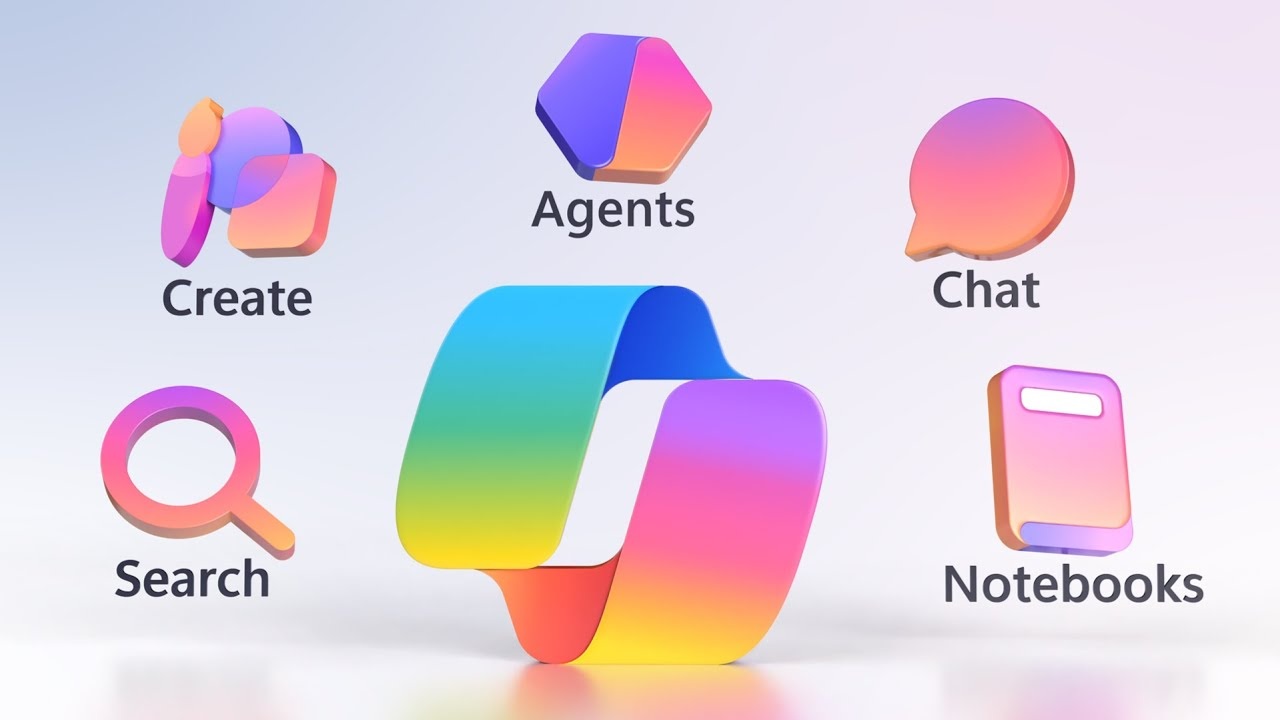
When Microsoft first introduced Copilot in Windows, it felt like the beginning of a smarter, more intuitive computing experience. Instead of navigating menus and settings manually, users could simply ask questions or give commands and let AI handle the rest. Fast forward to 2026, and Windows Copilot is going through one of its biggest transformations yet.
This update is not just about adding flashy AI features. Microsoft is refining how Copilot works, removing elements that did not resonate with users, and focusing on deeper system integration. Some changes are exciting, while others have sparked debate among long time Windows users.
If you rely on Windows for work, study, or daily tasks, these Copilot changes are worth understanding. This guide breaks down everything in a clear and practical way so you know exactly what to expect.
What Is Windows Copilot

Windows Copilot is Microsoft’s built in AI assistant designed to help users perform tasks, answer questions, and manage system settings using natural language. It combines AI models with Windows features to provide a seamless experience directly inside the operating system.
Instead of switching between apps or searching through settings, users can interact with Copilot in a conversational way. For example, you can ask it to adjust system brightness, summarize documents, generate content, or troubleshoot issues.
Over time, Copilot has evolved from a simple sidebar assistant into a more integrated system level tool. The 2026 update takes this evolution even further.
Why Microsoft Is Changing Copilot in 2026
Microsoft’s decision to revamp Copilot comes from a mix of user feedback, competition, and long term AI strategy.
First, not all users were happy with how Copilot was initially integrated. Some found it intrusive, especially when it appeared in apps where it was not needed. Others felt it lacked depth in real world tasks.
Second, competition in AI has intensified. Companies like Google and OpenAI are pushing rapid improvements in AI assistants. Microsoft wants Copilot to stay ahead by making it more useful, not just more visible.
Finally, there is a shift toward efficiency. Instead of adding features everywhere, Microsoft is focusing on making Copilot smarter, faster, and more context aware.
Major New Features in Windows Copilot 2026
1. Deeper System Integration
One of the biggest upgrades is how deeply Copilot is integrated into Windows. It is no longer just a sidebar tool. It can now interact with system settings, files, and apps more intelligently.
For example, you can say:
“Optimize my PC for gaming”
“Clean up storage and remove unnecessary files”
Copilot can execute these actions with minimal input, saving time and effort.
2. Context Aware Assistance
Copilot now understands what you are doing on your screen. This allows it to provide relevant suggestions without you needing to explain everything.
If you are editing a document, Copilot might suggest improvements. If you are browsing, it can summarize pages or highlight key information.
This feature makes Copilot feel less like a tool and more like an assistant that actually understands your workflow.
3. Multi App Task Handling
In previous versions, Copilot interactions were often limited to one task at a time. In 2026, it can handle multiple apps simultaneously.
For instance, you can ask:
“Take data from this Excel sheet and create a summary in Word”
Copilot will coordinate between apps to complete the task.
4. Offline AI Capabilities
Another major improvement is partial offline functionality. Certain Copilot features can now run locally on your device without requiring an internet connection.
This is especially useful for privacy conscious users and those working in low connectivity environments.
5. Improved Voice Interaction
Voice commands have been significantly upgraded. Copilot now supports more natural conversation, better accuracy, and faster response times.
You can speak to your PC almost like you would to a person, making tasks more intuitive.
6. Customization and Personalization
Users can now customize how Copilot behaves. You can choose what it can access, how proactive it should be, and which types of suggestions you want.
This flexibility addresses one of the biggest complaints from earlier versions where Copilot felt too rigid.
7. Enhanced Security and Privacy Controls
Microsoft has introduced clearer privacy settings. Users can control data usage, disable certain AI features, and review how Copilot interacts with their files.
This builds trust, especially for business and enterprise users.
Features Removed from Windows Copilot in 2026
While new features are exciting, the removals are just as important.
1. Copilot Buttons in Certain Apps
Microsoft has started removing Copilot buttons from some built in apps. Many users felt these buttons cluttered the interface without adding real value.
Instead, Copilot is now accessed in a more centralized and consistent way.
2. Always On Sidebar
The persistent Copilot sidebar has been redesigned and is no longer always visible by default. This change reduces distraction and gives users more screen space.
3. Limited Third Party Plugin Support
Earlier versions experimented with third party plugins, but many were underused or inconsistent. Microsoft has scaled this back to focus on core functionality.
4. Redundant Quick Actions
Some quick action features that duplicated existing Windows functions have been removed. This helps simplify the experience.
5. Experimental Features That Did Not Perform Well
Microsoft has quietly discontinued several experimental AI features that did not meet expectations in terms of performance or usability.
How These Changes Affect Everyday Users
For casual users, the changes mean a cleaner and more helpful experience. Copilot is less intrusive but more capable when you actually need it.
For professionals, the deeper integration and multi app support can significantly improve productivity. Tasks that used to take multiple steps can now be done in one command.
Students can benefit from better document assistance, summaries, and research support.
Gamers may appreciate performance optimization features and reduced system clutter.
Real World Example of Copilot in 2026
Imagine you are working on a project with multiple files.
Instead of opening each file manually and organizing them, you can say:
“Organize my project files and create a summary document”
Copilot can sort files, extract key information, and generate a summary in minutes.
This kind of workflow shows how Copilot is becoming a true productivity tool rather than just a novelty feature.
Pros and Cons of the New Copilot
Pros
- More powerful and useful features
- Better integration with Windows
- Reduced clutter and distractions
- Improved privacy controls
- Faster and smarter responses
Cons
- Some users may miss removed features
- Learning curve for new functionality
- Limited plugin ecosystem
- Dependence on hardware for advanced features
Comparison with Previous Versions
Earlier versions of Copilot focused more on visibility than functionality. The sidebar was always present, and features were spread across different apps.
The 2026 version is more refined. It focuses on meaningful interactions rather than constant presence.
This shift makes Copilot feel more like a professional tool rather than an experimental feature.
What This Means for the Future of Windows
The 2026 Copilot update signals a bigger trend. Microsoft is moving toward an AI first operating system where traditional interfaces become less important.
Instead of clicking through menus, users will rely more on natural language and automation.
This could change how people interact with computers in the long run.
Tips to Get the Most Out of Windows Copilot 2026
Start by exploring customization settings to match your workflow.
Use voice commands for faster interaction.
Try multi app tasks to save time.
Review privacy settings to stay in control.
Practice using natural language for better results.
Final Thoughts
Windows Copilot in 2026 is not just an update. It is a redesign of how AI fits into everyday computing.
By removing unnecessary features and focusing on real world usability, Microsoft is making Copilot more practical and less distracting.
There will always be mixed reactions to change, but this update clearly shows a step toward a smarter and more efficient Windows experience.
If you have not used Copilot much before, this might be the right time to give it another try. And if you are already a user, these improvements could make it an essential part of your daily workflow.